Wednesday, June 27, 2018

Azure Active Directory Connect, High CPU Usage After June 2018 Patching

I did the latest Microsoft security updates for some servers, and was noticing my server running Azure Active Directory Connect for Office 365 was running at very high CPU.  I wasn't successful at restarting it from within the guest (or, wasn't patient enough, take your pick) and reset the VM.  The issue persisted.

My Microsoft.Identity.Health.AadSync.MonitoringAgent.Startup.exe was running at 99%.

Some research quickly tipped me off to the culprit.  (https://social.msdn.microsoft.com/Forums/azure/en-US/e9b621f6-f38c-488e-8fcb-ff85d406f256/azure-ad-connect-health-sync-monitor-high-cpu-usage?forum=WindowsAzureAD) .NET Framework 4.7.2 was the culprit.  Uninstalling the right KB depends on your OS.

  • Server 2008 R2 - "Microsoft .NET Framework 4.7.2"
  • Server 2012 - KB4054542
  • Server 2012 R2 - KB4054566
  • Server 2016 - KB4054590
I was dealing with Server 2016, so I uninstalled KB4054590, restarted, and the server seems fine.


I'll be sure to monitor the version history to see if when I go to patch next month, if Azure Active Directory Connect has been updated to address this.


Monday, June 11, 2018

Resolving Crashing Skype for Business

Today, I found myself unable to open Skype for Business.  I would load the application and it would crash.

Examining my Event Viewer, I found the following:

Level: Error
Source: Application Error
Event ID: 1000
Faulting application name: lync.exe, version: 16.0.4690.1000, time stamp: 0x5acd052e
Faulting module name: KERNELBASE.dll, version: 10.0.15063.1029, time stamp: 0x99b50546
Exception code: 0xc06d007e
Fault offset: 0x000f0132
Faulting process id: 0x3364
Faulting application start time: 0x01d40178ed74b119
Faulting application path: C:\Program Files (x86)\Microsoft Office\Office16\lync.exe
Faulting module path: C:\WINDOWS\System32\KERNELBASE.dll
Report Id: fde33f51-913a-4302-9674-3a5370420999
Faulting package full name: 
Faulting package-relative application ID: 

I was a bit perplexed as I had run successfully last week after receiving updates.

I found the resolution here (thanks to Brian):
https://community.spiceworks.com/topic/2126287-skype-for-business-2016-problems-after-kb4018323

  • Open your Playback devices menu by right-clicking on the volume icon on your taskbar (or your preferred method)
  • Highlight your current playback device and select the Properties button.
  • Select the Advanced tab on the resulting window.
  • Under the heading ,"Exclusive Mode", ensure that both checkboxes are unchecked. Really, you can deselect the first checkbox and it will gray out the second for you.


Monday, January 22, 2018

Exchange, Trend ScanMail, SQL Server Express, and SQL Server 2012 Native Client

I have an older Exchange environment to manage in my environment.  I have hopes to migrate to Exchange Online, but in the meantime, Exchange on premise needs maintenance.

We protect our Exchange with Trend Micro ScanMail (among other products).

Recently, when calling support, I discovered I had let our version of ScanMail fall behind and was out of support.  It was time to update to ScanMail 12.5.

I read the documentation, and the process looked fairly straight forward.  I was very concerned about the risks involved (email is probably our most visible service to our end users) but the work needed to happen.

In the first few screens of the ScanMail upgrade, it pointed out that if your version was being back-ended by SQL Express, you should upgrade off SQL Server 2008 Express to SQL Server 2014 Express.  A little investigation on my part reveals, yes, I need to do this.

OK, so I cancel the ScanMail upgrade and proceed onto downloading SQL Server 2014 Express.

And unfortunately, there things stopped going smoothly.

Some way into the upgrade, it stopped.  It was attempting to do something with the Microsoft SQL Server 2012 Native Client.  It was telling me that it couldn't find SQLNCLI.MSI.  OK, fair enough, I go download it.  I point it to my download.  Nope:

"The file '<path>SQLNCLI.MSI' is not a valid installation package for the product Microsoft SQL Server 2012 Native Client.  Try to find the installation package 'sqlncli.msi' in a folder from which you can install the Microsoft SQL Server 2012 Native Client."


Uh oh.

I tried other downloads, and even scoured the server for every copy of SQLNCLI.MSI I could find.  Despite finding a variety of versions, every file returned that same error message.

Finally, out of ideas, I hit cancel on the prompt for the SQLNCLI.MSI.  The installation continued on.

But, unsurprisingly, it failed, telling me that several components had been unsuccessful.

At this point, I took inventory of the server, and could see I was in rough shape.  I could see signs of SQL Server 2008 Express and 2014 Express both on the system.  But the 2008 version was what was still running.

Some quick Googling didn't yield any results.  Given the criticality of this server, I felt a call to Microsoft Support was my best option.

When I got my support technician on the phone, he had me try one interesting avenue (that didn't help my situation but could be helpful in general).   This utility checks for missing SQL MSI files and can remediate.  My server yielded no results.  The link to that utility is here: 
FixSQLMSI Version1.3.zip

Once that didn't yield any solution, his suggestion then became the right one.  Uninstall the SQL Server 2012 Native Client, and rerun the SQL Server 2014 Express upgrade.

That finished successfully.  I then had healthy SQL Server 2014 Express.  And I was able to successfully complete my ScanMail 11.0 SP1 to 12.5 upgrade.

Monday, April 17, 2017

Exchange Server 2010 to Exchange Online Message Tracking Does Not Work


My organization is currently working on moving from on premise Exchange to hosted Exchange from Microsoft via Office 365 and Exchange Online.

Prior to moving any mailboxes to our tenant, we have been testing from on premise mailboxes to test cloud mailboxes.  

We were tracking messages from Outlook Web Access.  Under Manage My Organization, Mail Control, we'd run Delivery Reports.

I would search from an on premise mailbox to a cloud mailbox for messages I had sent.  The search would work well and return results.
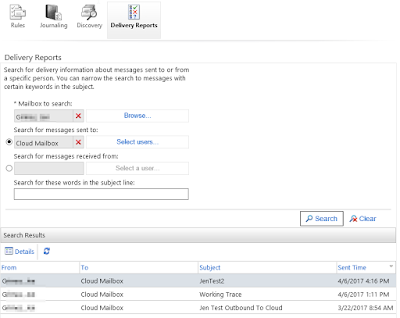


Once I double clicked one of the results to see detail, however, that wasn't successful.  It would not be successful and would fail after a timeout.


I opened a ticket with Microsoft Support.

It wound up being fairly involved and we did quite a bit for troubleshooting.  But the ultimate solution was to close the ticket as a known bug.


I consulted about the results of our last troubleshooting to get Message tracking report using EMS and we got the error related to “WARNING: The log search service was unavailable on server 'mwhpr09mb2047.namprd09.prod.outlook.com'.”

It’s a known issue on O365 which possibly might not be addressed any time soon, the alternate option would is to use the Messaging Tracing if they can in our  scenario. Message Tracing is available to admins only, can't directly search on Subject (but can search on recipient, sender, date/time then sort to locate specific subject).


As an administrator, you can find out what happened to an email message by running a message trace in the Exchange admin center (EAC). After running the message trace, you can view the results in a list, and then view the details about a specific message. Message trace data is available for the past 90 days. If a message is more than 7 days old, the results can only be viewed in a downloadable .CSV file.


Reference:


Since this a known issue in product, you will not be charged for the incident. 

So, I can track messages from the Office 365 administrator center, and can do nothing to correct the issue impacting my on premise message tracking